✅ WHATSApp Cloud API – Complete Step-by-Step Setup (Developer + Business Manager)
6
⭐ STEP 1 — Create a Meta Developer Account
- Go to: https://developers.facebook.com/
- Log in using your Facebook account.
- Accept all terms.
- Click “Create App”.
⭐ STEP 2 — Create Your App (Choose Correct Type)
- Select “Other” → Continue
- Choose “Business” type → Continue
- App Name:
👉 Anjok WhatsApp API / Client Name WhatsApp API - App Contact Email → continue
- Connect to your Meta Business Manager
- Click Create App
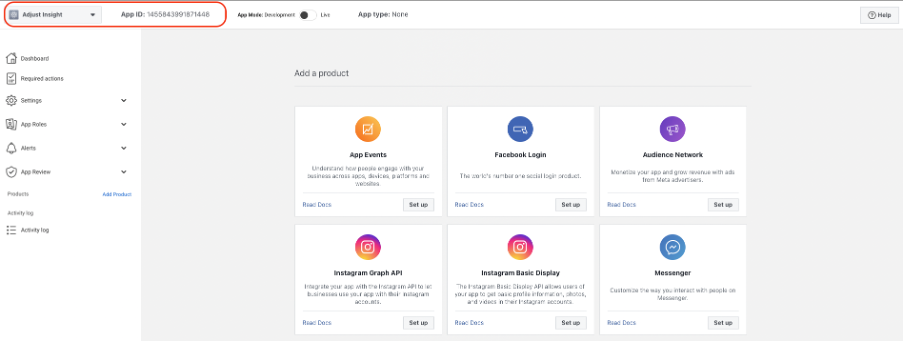
⭐ STEP 3 — Add WhatsApp Product to Your App
- Inside your app dashboard → Left sidebar
- Click Add Product
- Find WhatsApp
- Click Set Up
⭐ STEP 4 — Select Your Business Account
- You will see a dropdown:
✔ Choose your Business Manager (Anjok Technologies) - Click Continue
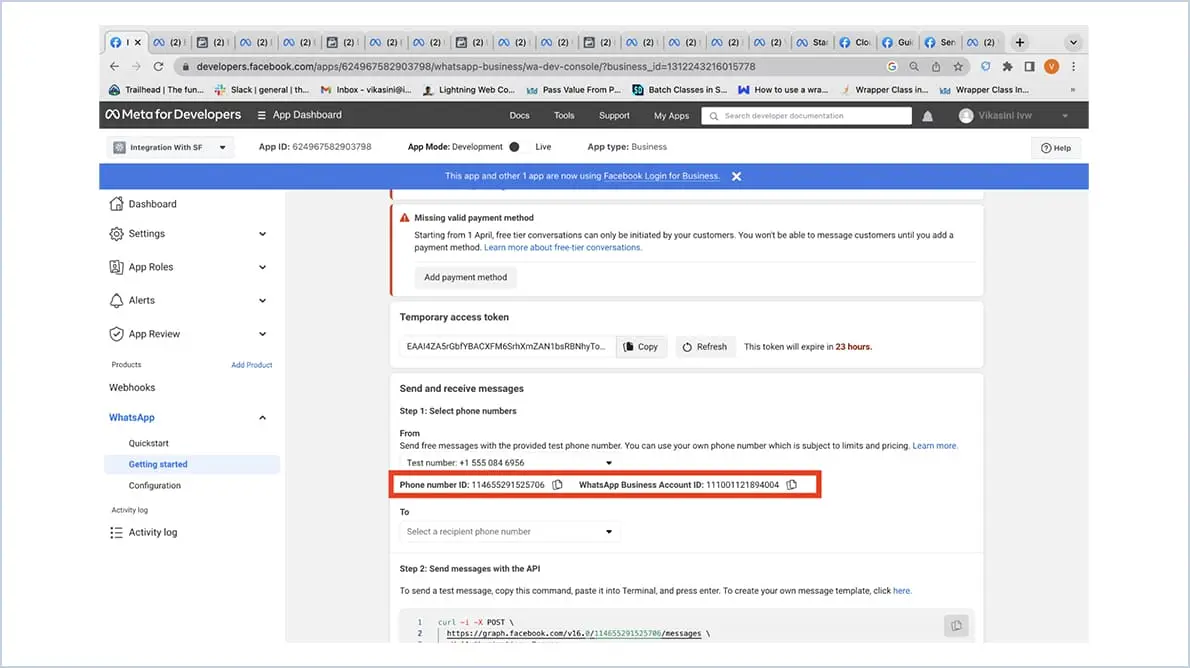
⭐ STEP 5 — Get Temporary Access Token (for testing)
- Go to: WhatsApp → API Setup
- You will see:
✔ Temporary token
✔ Test phone number
✔ Example cURL API
👉 This is for testing only. Token valid for 24 hours.
⭐ STEP 6 — Add a Real Phone Number
- Go to: WhatsApp → API Setup → Phone Numbers
- Click Add Phone Number
- Enter:
- Business Display Name
- Business Info
- Verify using OTP (SMS/Call)
Once verified → Your Official WhatsApp API Number is ready.
⭐ STEP 7 — Set Up Payment (VERY IMPORTANT for Sending Messages)
Inside Meta Business Manager:
- Go to: business.facebook.com
- Settings → Billing
- Add:
✔ Debit/Credit Card
✔ UPI auto-debit (India) - Your WhatsApp API is now ready for paid usage.
India rates:
- ₹0.35 – ₹0.55 per conversation (utility, marketing etc.)
⭐ STEP 8 — Create a Permanent Access Token
Temporary tokens expire in 24 hours.
So you must generate a system user + permanent token.
Steps:
- Go to: Business Settings → Users → System Users
- Click Add
- Name: Anjok-API-SystemUser
- Role = Admin
- Click Add Assets
- Select your WhatsApp App
→ Give full access - Now click Generate Access Token
- Select:
- App
- Permissions:
✔ whatsapp_business_management
✔ whatsapp_business_messaging
👉 Copy your Permanent Token (long-term token).
⭐ STEP 9 — Configure Webhooks (Incoming Messages)
- In your App → Left sidebar
- Click Webhooks
- Subscribe to whatsapp_business_account
Add your callback URL:
https://yourdomain.com/webhook.php
- Add Verify Token (your custom string)
You must handle:
- Incoming messages
- Delivery updates
- Status updates
Inside webhook.php
⭐ STEP 10 — Connect Your Backend (PHP, Node, Python, Django)
Example simple PHP sending message:
$token = "YOUR_PERMANENT_TOKEN"; $phone_number_id = "YOUR_PHONE_NUMBER_ID"; $url = "https://graph.facebook.com/v21.0/$phone_number_id/messages"; $data = [ "messaging_product" => "whatsapp", "to" => "919xxxxxxx", "type" => "text", "text" => ["body" => "Hello from Anjok Technologies!"] ]; $ch = curl_init($url); curl_setopt($ch, CURLOPT_POST, true); curl_setopt($ch, CURLOPT_HTTPHEADER, [ "Authorization: Bearer $token", "Content-Type: application/json" ]); curl_setopt($ch, CURLOPT_POSTFIELDS, json_encode($data)); curl_setopt($ch, CURLOPT_RETURNTRANSFER, true); $response = curl_exec($ch); curl_close($ch); echo $response;
⭐ STEP 11 — Add Message Templates (For Marketing + Notifications)
- Go to: Business Manager → WhatsApp → Message Templates
- Create template
- Add:
- Variables
- Buttons
- Header image/video (optional)
- Submit for Approval
- Use template ID to send messages via API.
⭐ STEP 12 — Production Ready
✔ Billing enabled
✔ Real number added
✔ Permanent token generated
✔ Templates approved
✔ Webhook connected
✔ Backend API working
Your WhatsApp Cloud API is now fully live.
⭐ Want me to create:
✅ A full setup checklist (PDF)
✅ API code for PHP, Python, Node, Django
✅ Admin panel to send WhatsApp messages
✅ Multi-user WhatsApp tool (like MessageBox / Interakt)
➡ I can create your entire product.
Just tell me: Which part you need next?
You said:
Search by phone number or name Country Filter by country Filter by phone status Filter by status Phone number Name Status Quality rating WhatsApp +91 88705 77517 🇮🇳 India Anjok Technologies Pending Pending
ChatGPT said:
Here is the meaning of each field and what you must do now to move your WhatsApp API number from Pending → Approved.
✅ Your Current Status (Explained)
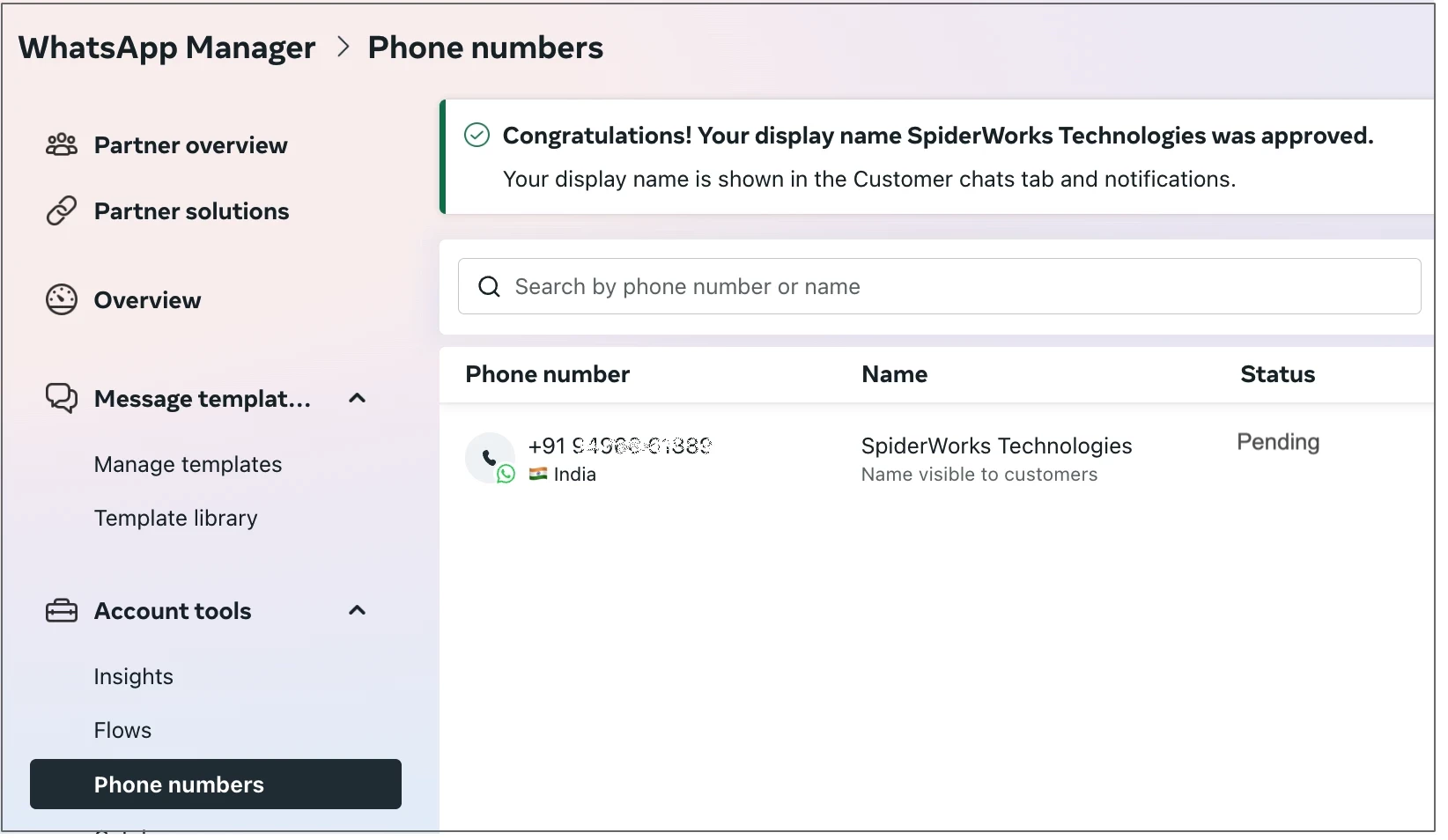

You are seeing:
| Field | Value | Meaning |
|---|---|---|
| Phone Number | +91 88705 77517 | Your WhatsApp API number |
| Country | India | OK |
| Name | Anjok Technologies | Display Name you want to show |
| Status | Pending | Meta has not approved your Display Name |
| Quality Rating | Pending | Will appear only after approval |
| Pending | Setup is not finished |
🚨 Why status is PENDING?
Meta manually checks:
- Display Name Matches Business Name
- Business Verification is completed
- Phone Number not registered on normal WhatsApp or Business App
- No policy violation
If ANY one is missing → status will show Pending.
✅ How to Fix & Approve the Number (Step-by-Step)
Step 1 — Make Sure Number Is Not Already Registered
Go to the phone → uninstall WhatsApp completely:
✔ Delete WhatsApp
✔ Delete WhatsApp Business
✔ Restart phone
Step 2 — Verify Your Business in Business Manager
Go to:
business.facebook.com/settings → Business Info → Business Verification
You must upload:
- GST certificate
- PAN
- Address Proof
- Phone number
- Website URL (anjoktechnologies.in)
- Verification link email
If Business Verification is Not Done → Number will stay Pending.
Step 3 — Check Display Name Rules
Your display name: Anjok Technologies
✔ Must match your legal business name
✔ Website must show the same name
✔ No missing words
✔ No abbreviations
This is OK because your company already uses this name.
Step 4 — Re-submit Display Name
Inside WhatsApp Manager:
- Go to:
📍 WhatsApp Manager → Phone Numbers - Click your number (+91 88705 77517)
- Click Remove Display Name
- Add again: Anjok Technologies
- Submit
This refreshes the approval.
Step 5 — Connect to your WhatsApp App
In developers.facebook.com → Your App → WhatsApp → API Setup
Check:
✔ Phone Number is linked
✔ WABA is connected
✔ System user permissions added
✔ Payment method is added
If anything is missing → Approval gets delayed.
Step 6 — Wait for Meta Review
Usually takes:
- 1–2 hours (if business verification is done)
- Up to 48 hours (if verification is newly submitted)
- Up to 7 days (if documents mismatch)
⏳ What happens after approval?
You will see:
| Status | Quality |
|---|---|
| Approved | Green / High |