Billing Eligibility – Error Code: 131042
Even after setting up API correctly, messages fail and customers don’t receive anything.
Don’t worry.
This error is 100% fixable, and in most cases, the problem is not technical code issue, it is Business Manager setup issue.
Anjok Technologies explains this in simple words below.
6
❓ What is Error 131042?
Error 131042 means:
👉 Your WhatsApp Business Account is NOT billing eligible
So Meta blocks:
- Sending messages
- Sending templates
- Bulk messaging
- Automated replies
Even if:
- API token is correct
- Phone number is verified
- Webhook is working
Messages will fail until billing eligibility is fixed.
🔍 Why This Error Happens (Main Reasons)
From our experience, 90% of clients face this issue due to these reasons:
❌ 1. Payment Method Not Added
No card / UPI added in Meta Business Manager.
❌ 2. Phone Number Created in Test Mode
Number added inside Developer Test Environment, not in WhatsApp Business Manager.
❌ 3. Business Verification Incomplete
Business details not verified properly.
❌ 4. Tax / GST Details Missing
For Indian businesses, tax info is important.
❌ 5. Payment Method Added but Not Active
Card added but failed / expired / limited.
✅ Step-by-Step Solution to Fix Error 131042
Follow these steps carefully 👇
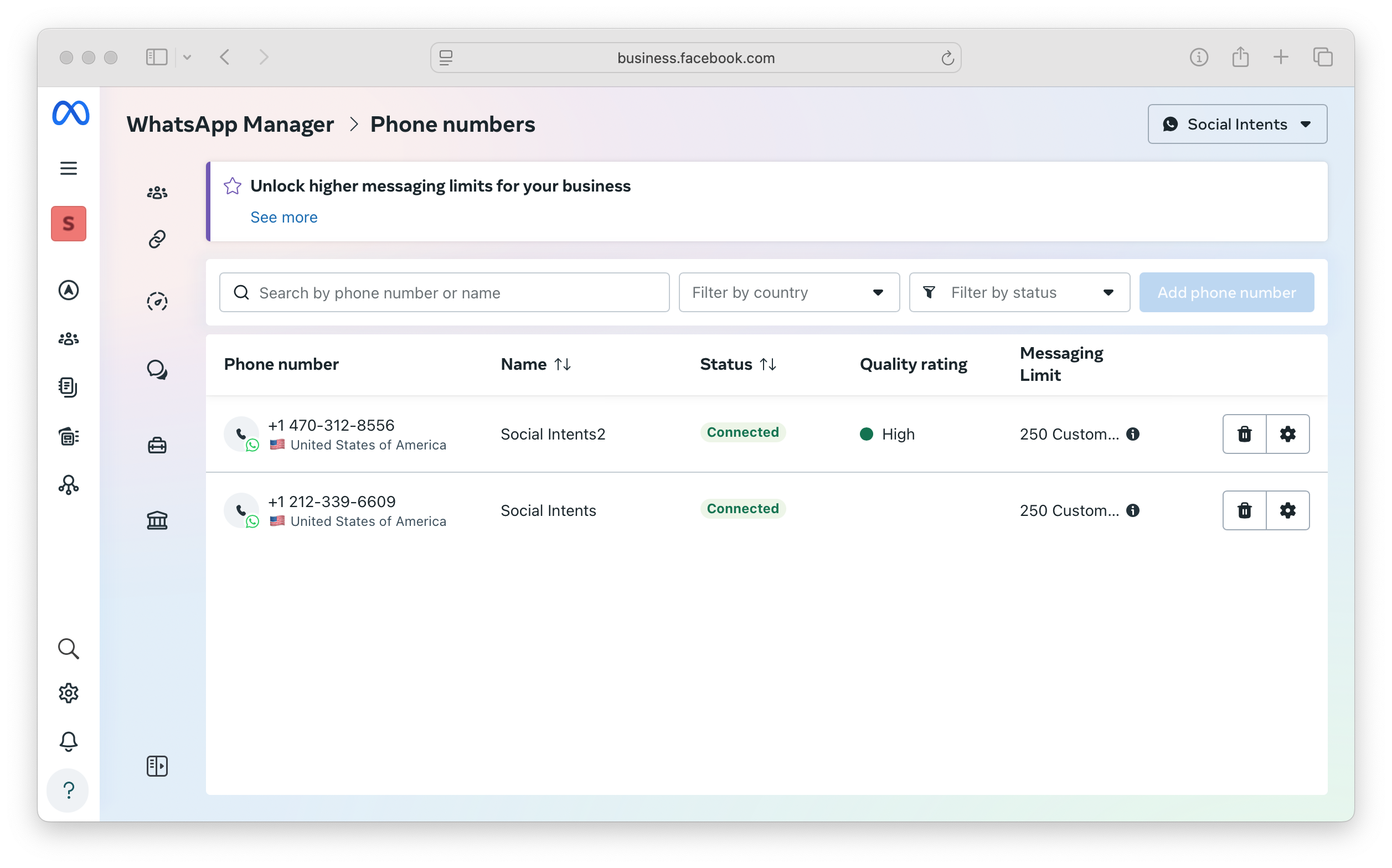
✅ STEP 1: Add Phone Number in WhatsApp Business Manager (Very Important)
❌ Do NOT use Test Phone Number from developer dashboard.
✔ Correct way:
- Go to business.facebook.com
- Open Business Settings
- Go to Accounts → WhatsApp Accounts
- Select your WhatsApp Business Account
- Go to Phone Numbers
- Click Add Phone Number
- Verify OTP on real WhatsApp number
👉 This step alone fixes error for many users.

✅ STEP 2: Add Payment Method (Mandatory)
Without payment, WhatsApp API will not send messages.
How to add payment:
- Go to Business Settings
- Open Payments
- Click Add Payment Method
- Add:
- Credit Card / Debit Card
- UPI Autopay (if available)
- Save and wait 2–5 minutes
After this, refresh WhatsApp Manager.
✅ STEP 3: Verify Tax / GST Details (India Only)
For Indian accounts:
- Add GST number if available
- Or confirm non-GST business
This helps Meta approve billing eligibility faster.
✅ STEP 4: Check WhatsApp Business Account Status
Make sure:
- Business status = Approved
- Phone number quality = Green
- No policy violation warnings
✅ STEP 5: Retry Sending Message
After completing above steps:
- Wait 5–10 minutes
- Send a test message
- Error 131042 will be gone ✅
🧠 Important Notes (From Real Experience)
✔ Payment may show ₹0.00 – that is normal
✔ First few messages may be free
✔ Charges apply only after free tier
✔ Billing eligibility is checked per WABA, not per number
✔ Don’t delete & recreate account again and again
🎯 Summary – Fix Error 131042 Quickly
✔ Add phone number in WhatsApp Business Manager
✔ Do NOT use test phone number
✔ Add active payment method
✔ Complete tax details
✔ Check business verification
That’s it. No coding change needed.
🏢 Why Contact Anjok Technologies?
We have solved many WhatsApp API billing & eligibility issues for clients in:
- Coimbatore
- Tiruppur
- Erode
- Salem
- Chennai
We provide:
- WhatsApp Cloud API setup
- Billing issue resolution
- Bulk messaging systems
- Chatbot automation
- End-to-end support
📞 Contact Anjok Technologies
📱 +91 80729 70517